Explore Container Insights
Check that the logs are streaming into CloudWatch Logs
Navigate to CloudWatch Logs and and ensure that you are able to see a Log Group in the below format:
/aws/ecs/containerinsights/cluster-name/performance
Explore CloudWatch Container Insights
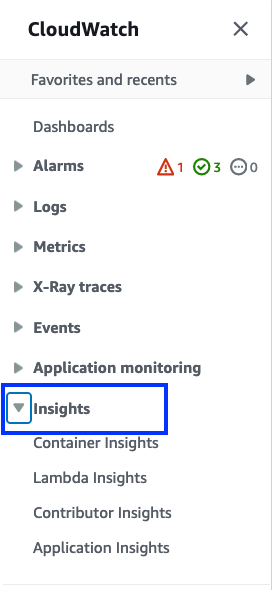
Navigate to Amazon CloudWatch home page. Select Insights from the left drop down on the home page as shown below
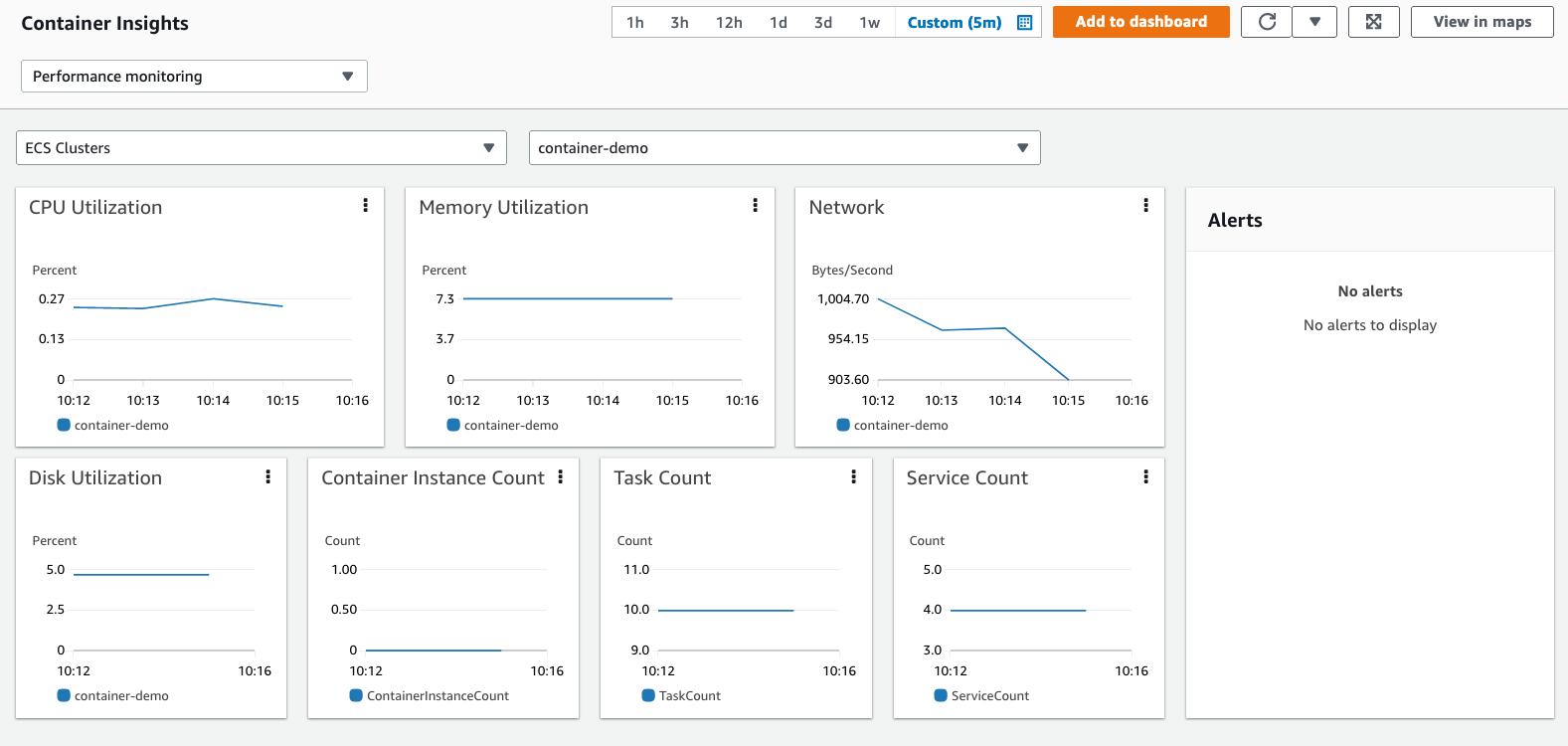
Select the container-demo cluster in tge resourcesin the first dropdown and select the ECS cluster you created in the second dropdown. You will be able to see several built-in charts showing various cluster level metrics such as CPU Utilization, Memory Utilization, Network and other information in the default dashboard as shown below
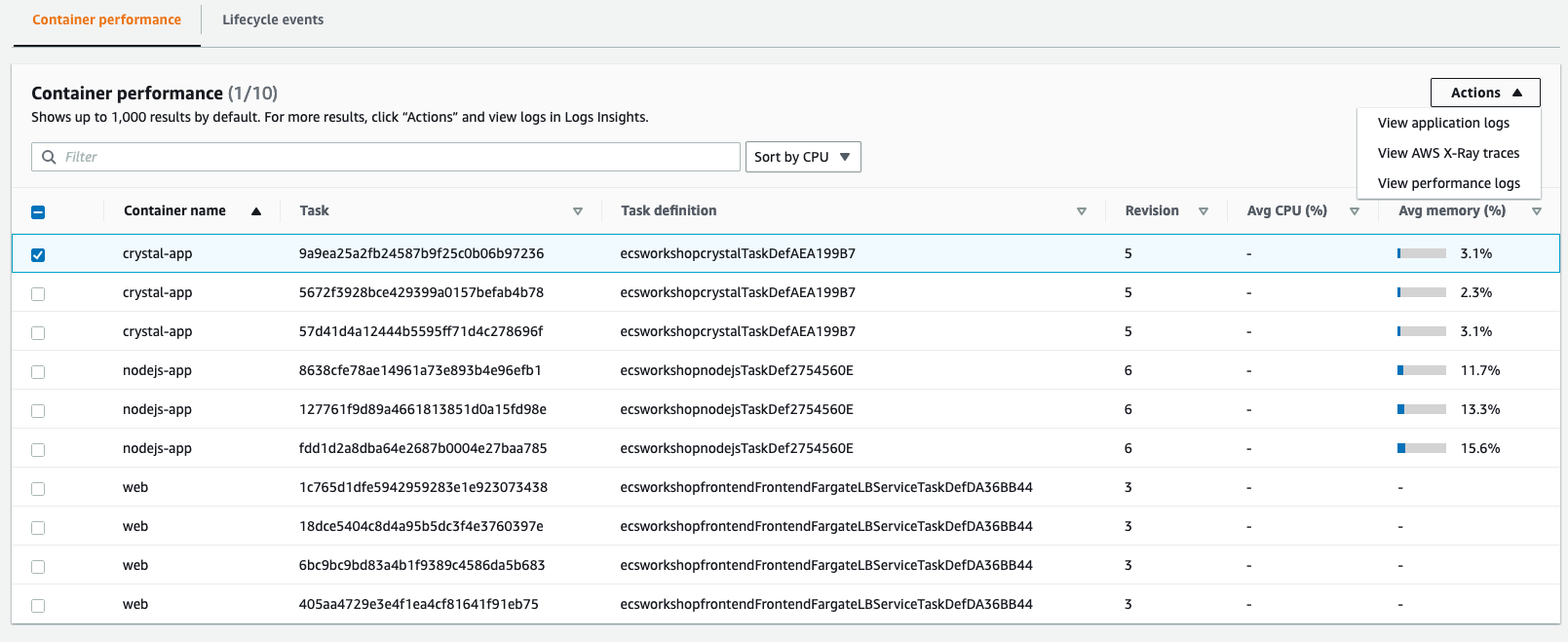
You can also view Performance Logs by simply selecting the cluster name and clicking on Actions dropdown as shown below

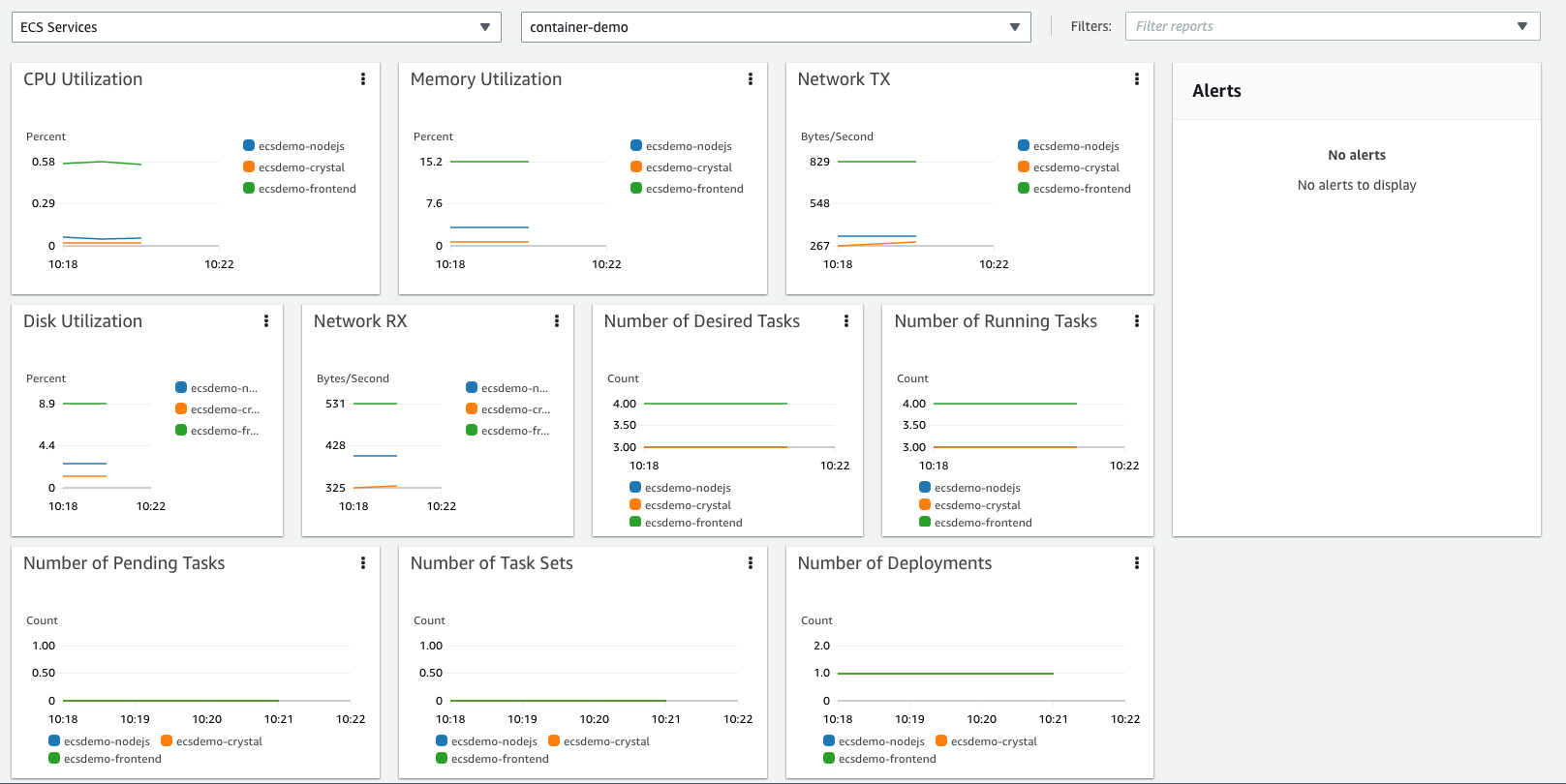
You can also drill down into the cluster and see the metrics at the Service level by simply selecting ECS Services in the first drop down as shown below. The dashboard adjusts to show charts relevant to ECS Service such as Task information, Deployment information.
Scroll down to see all the Tasks that are part of the Service listed. You can select any task in the list and click the Action dropdown to see Task specific Application logs, X-Ray traces and Performance logs.
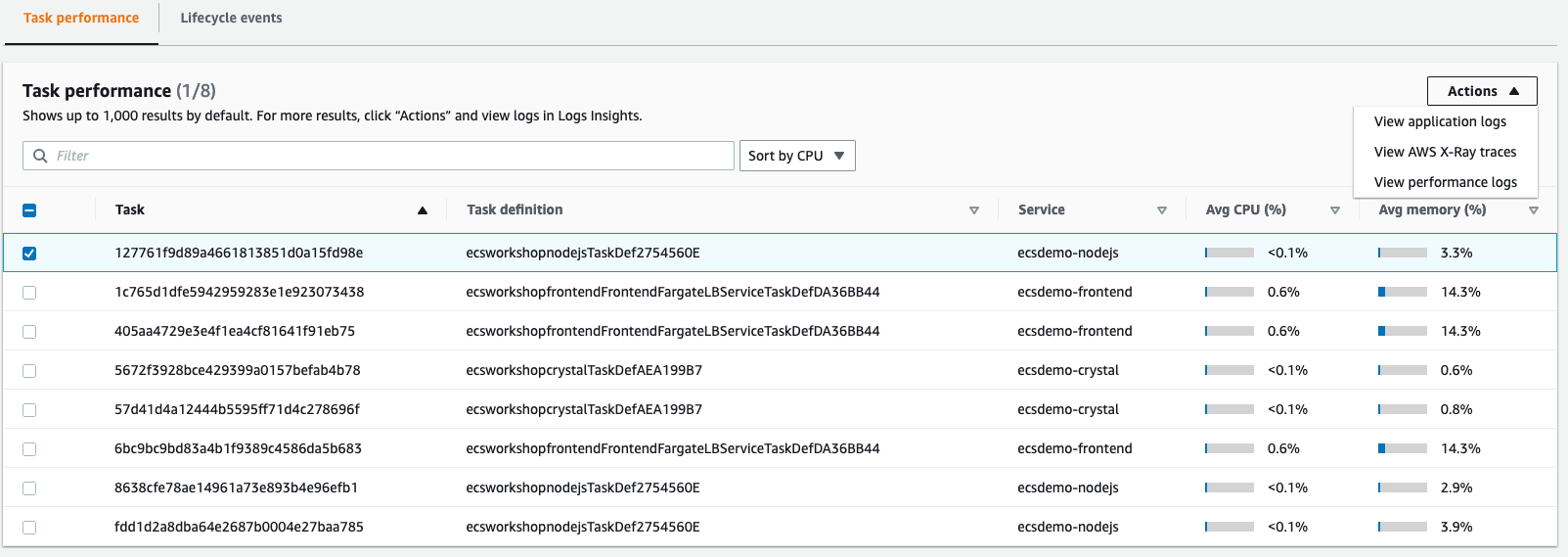
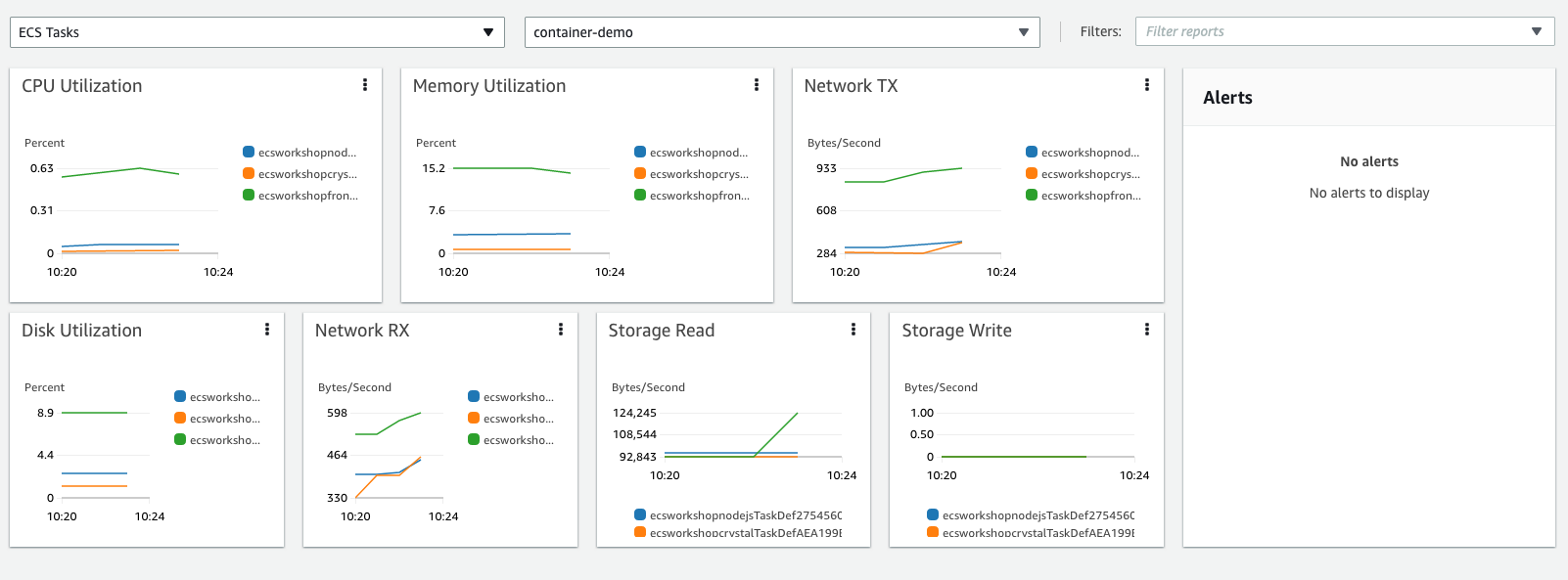
Select ECS Tasks in the first dropdown and select the ECS cluster you created in the second dropdown. You will be able to see several built-in charts showing various Task level metrics such as CPU Utilization, Memory Utilization, Network, Number of Running Tasks, Number of Pending Tasks and other information in the default dashboard as shown below
Scroll down to see all the Containers that are part of the Tasks in the Service. You can select any Container in the list and click the Action dropdown to see Container specific Application logs, X-Ray traces and Performance logs.